How can we help?
Need more assistance?
Contact us anytime at community@wavveboating.com
How to Video Guides
Check out the Wavve Boating YouTube channel at https://www.youtube.com/@wavveboating to keep up to date and get the most out of the app.
Map Basics
Learn the basics of making the Wavve Boating map your own with this tutorial.
How to Update the Map to Your Boat’s Draft
Learn how to update your map depths to your local tide/water level station.
Check the Weather and Wave Forecast
Learn how to check the weather and wave forecasts to ensure a safe and enjoyable boating experience.
How to Route Automatically
Learn the simple steps to create efficient and safe routes for your boating adventures.
How to Plot a Route Manually
This will cover all the steps to ensure you can manually plan a route precisely where you want to go.
How to Record a Trip – Breadcrumbing
This video will guide you on how to use the Wavve Boating app to keep a log of your journeys.
How to Add Your Home Port
This will guide you through the steps to set up and save your home port for quick and easy access.
How to Input Coordinates
Learn how to input and search for specific coordinates in the Wavve Boating app.
How to Update Your Map Depths to the Current Tide
Learn how to update your map depths to show current water levels with the most accurate information.
How to Manage Your Subscription
Learn how to update, renew, or cancel your subscription directly from the app.
How to Add and Update Fuel Stations
Learn how to add and update a fuel point on the Wavve Boating map in just a few steps.
How to Import & Export Routes
Learn how to import routes into the Wavve Boating app as GPX files and export them for use on other devices.
How to Save Map Areas for Offline Use
Learn how to save chart data from the Wavve Boating map and use it without data or internet.
How to Save and Access Routes
Learn how to save a route and access it later – whether it was created via AutoRoute, manually or by recording a trip.
SeaDoo/Wavve Boating BRP Go! Setup
Learn how to setup your Seadoo display with BRP GO! and Wavve Boating.
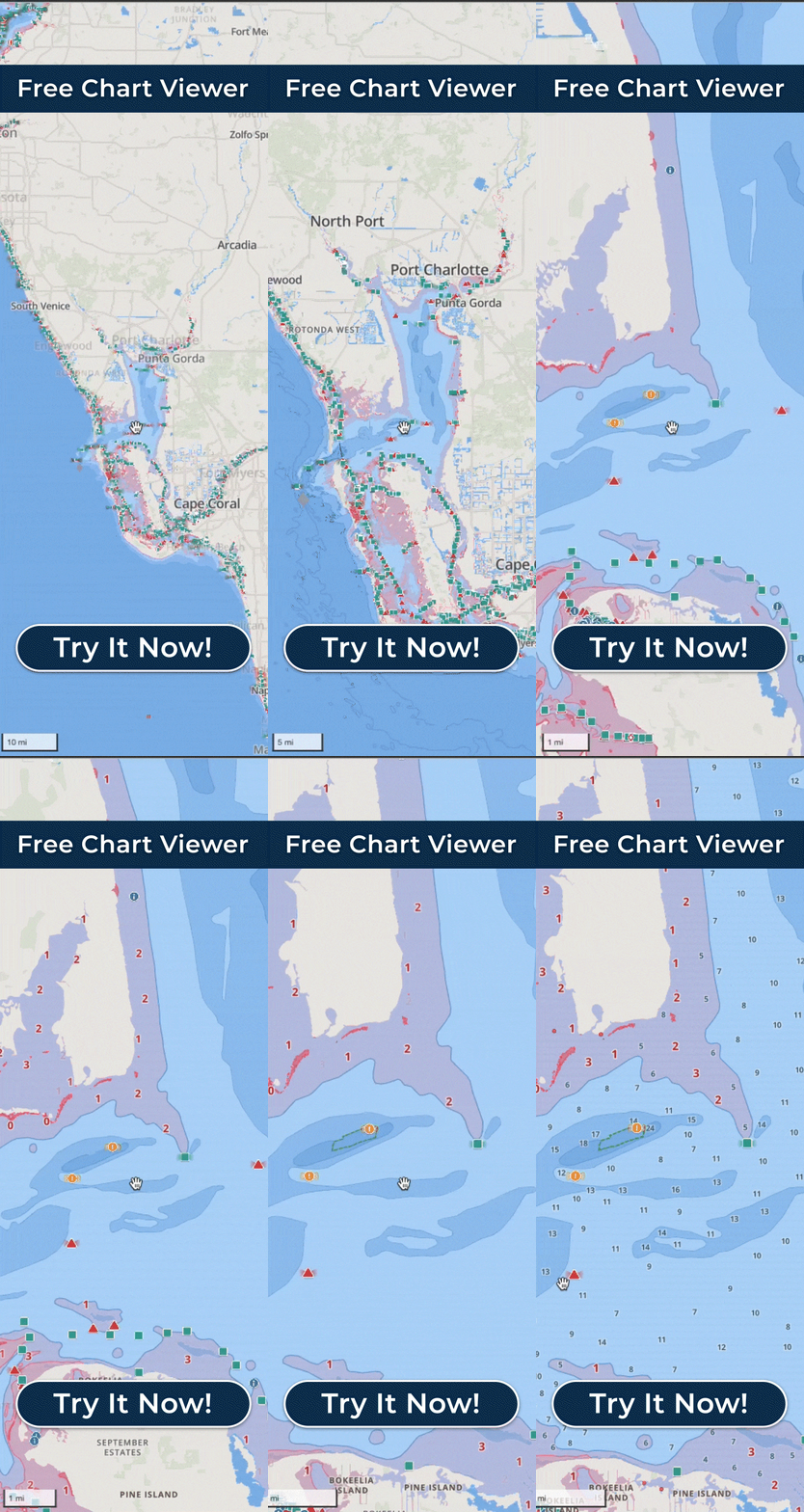
How to Use Wavve Boating’s Free Web Chartviewer
Learn how to explore waterways using Wavve Boating’s free chart viewer.
Account Management
How to Redeem a Promo Code
To apply your promotional discount please visit join.wavveboating.com. If you already have a Wavve Boating account, please tap ‘Login’ on this page.
In the ‘Promo code’ field enter the code provided.
Please proceed with the listed steps on the screen to checkout.
Frequently Asked Questions
Report a bug/Issue
Thank you for helping us improve! If you have noted a bug, issue, or would like to provide any feedback, please email us at community@wavveboating.com. Our team will get back to you within 48hours (probably sooner).